Copying Open Time Out of Google Calendar
Tags:#chrome-extensions#typescriptScheduling by email means typing out when I’m free: which days, which hours, in what timezone. The calendar already knows all of that. Slotclip lets me drag across open time in Google Calendar’s week view, or fill in every opening at once, and copies the result as a dated list I can paste into an email.
It started in August as AvailShare, the extension I wrote about briefly in Chrome Extensions FTW. On October 16 it got its new name and the pieces of a Chrome Web Store listing, and version 1.2.0 shipped on October 27. Since October 29, the install buttons on slotclip.com go to the store listing.
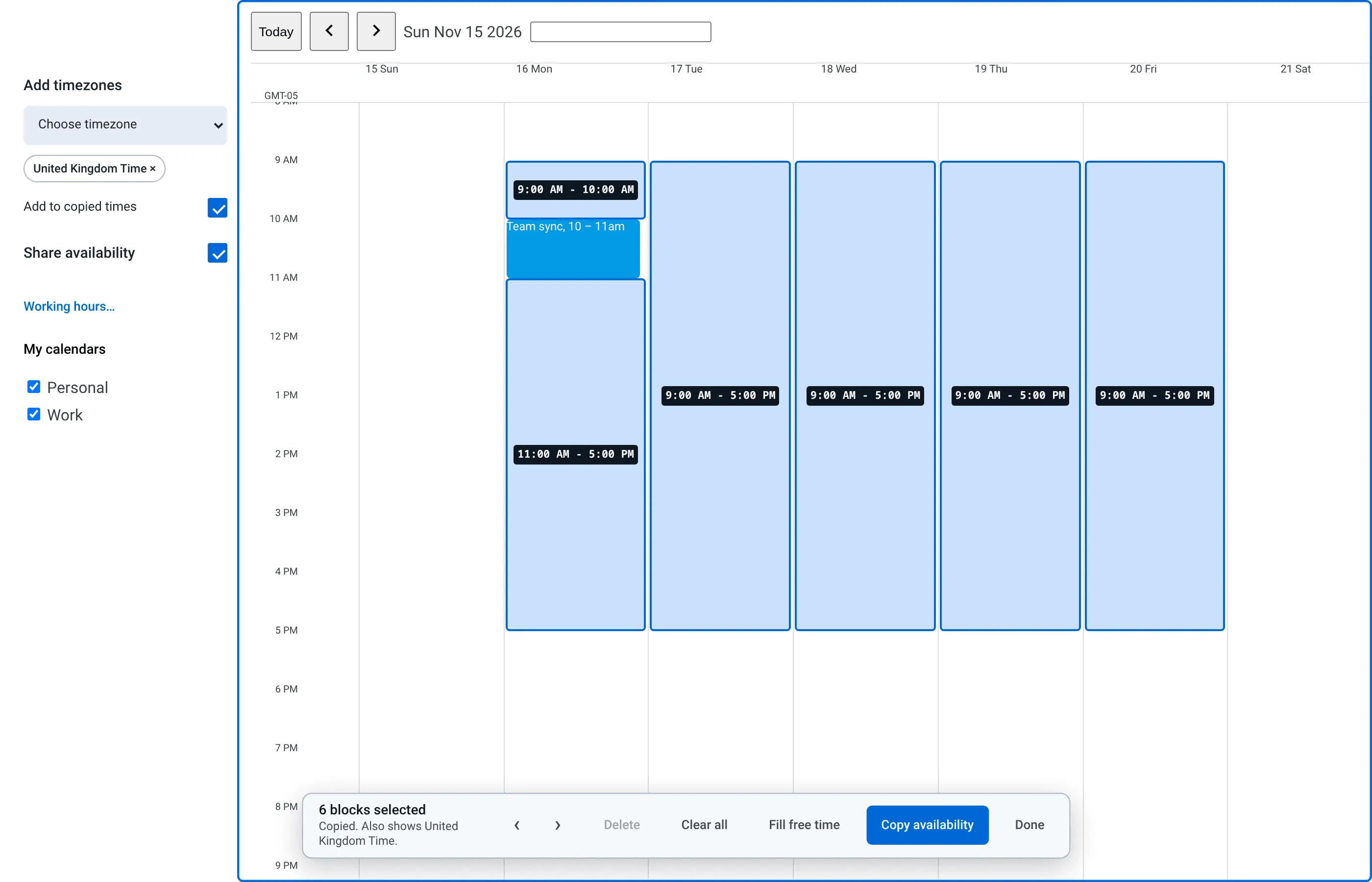
That’s the stand-in Calendar page from Slotclip’s own end-to-end tests, with the built extension loaded into Chromium. I picked a week in November, pressed Fill free time, added United Kingdom Time for the recipient and copied. This is what landed on the clipboard as plain text:
### Monday, November 16
- 9:00 AM - 10:00 AM EST (2:00 PM - 3:00 PM United Kingdom Time)
- 11:00 AM - 5:00 PM EST (4:00 PM - 10:00 PM United Kingdom Time)

### Tuesday, November 17
- 9:00 AM - 5:00 PM EST (2:00 PM - 10:00 PM United Kingdom Time)
The rest of the week follows the same pattern. Saturday and Sunday are skipped, and Monday is split around the one event.
Reading the week off the page
Slotclip doesn’t use the Calendar API. There’s no OAuth, no account and no server, and nothing leaves the browser. A content script on calendar.google.com reads the week from the page Calendar has already drawn. Installing it shows a single warning, “Read and change your data on calendar.google.com”, and a test asks Chrome for the manifest’s permission warnings and fails if anything else shows up.
Calendar’s markup isn’t a public API, so every lookup that depends on it lives in one file, src/calendar/dom.ts. It prefers semantic attributes and layout, and only falls back to English text where nothing else identifies a control.
Day columns are elements with both data-datekey and role="gridcell", at least 36 pixels wide and 500 tall. The date key is a number with the date packed into its bits, so it decodes without parsing any visible text:
export function decodeGoogleDateKey(value: string): Date {
  const key = Number(value);
  if (!Number.isInteger(key)) throw new Error("Google Calendar returned an invalid date.");
  const day = key & 31;
  const month = (key >> 5) & 15;
  const year = 1970 + (key >> 9);
  return new Date(year, month - 1, day);
}
Events are elements with data-eventid. Each is assigned to the day column it overlaps most, and its top and bottom edges become minutes after midnight from where they sit in that column. Hidden and unchecked calendars aren’t drawn, so they don’t count as busy.
The hour labels are found by position: short, numbered text just left of the first day column, at least four of them lined up on one edge. That works in any language and either clock format, and it reads Calendar’s 12- or 24-hour setting, since only a 24-hour axis labels an hour past 12. Calendar keeps hidden copies of some text, including a second set of hour labels at a different spacing, so every text lookup skips anything that isn’t actually rendered.
Calendar also has its own light and dark themes, separate from the operating system’s, and Slotclip’s controls follow Calendar. It decides from the color of Calendar’s own text, skipping events and form controls: light text means a dark theme, however the background is painted.
Quarter hours
Everything snaps to 15 minutes: drag edges, the shortest block, keyboard steps, and the space kept around an event. Before a drag is split around events, each event’s start rounds down and its end rounds up to the quarter hour:
.map((busy) => ({
  ...busy,
  startMinutes: Math.floor(busy.startMinutes / increment) * increment,
  endMinutes: Math.ceil(busy.endMinutes / increment) * increment,
}))
A meeting from 10:05 to 10:50 blocks 10:00 to 11:00, so a selection never ends at 10:05 or starts at 10:50. Moving or resizing a block can’t push it into an event either, and blocks that touch on the same day merge before they’re copied.
Fill free time does the dragging for me. It takes every visible day inside my working hours, which default to 9 to 5, and subtracts the events. It skips weekends unless I ask for them, skips time that has already passed today, rounding the start up to the next quarter hour, and drops openings shorter than the minimum, 30 minutes by default. The settings page can add a buffer of 15, 30 or 60 minutes around events. Weekends come from the locale through Intl.Locale, so they’re Friday and Saturday where that’s the norm. Settings sync through Chrome with my profile, and anything missing or out of range falls back to the default.
Two formats on one clipboard
An email editor and a plain-text field want different things, so Copy availability writes both. Rich-text editors get an <h3> per day and a bulleted list, styled inline, with only the date in bold. Everything else gets the Markdown-like text above.
Writing both normally means the async Clipboard API, which depends on the page’s clipboard permission. When the page refuses, Slotclip registers a copy listener in the capture phase, so Calendar’s own copy handling can’t replace the data, and triggers a copy during the same click. That’s why the extension never asks for clipboard access.
ICU puts a narrow no-break space between “9:00” and “AM”, which shows up as an odd character in some plain-text editors, so it’s replaced with a normal space. And everything in the HTML is escaped, even though today it all comes from Intl, because it ends up in someone’s email draft.
Calendar’s timezone, not the computer’s
Calendar can be set to a different timezone than the computer, and the copied times have to be in Calendar’s. The page only shows a label above the hour axis, like “EDT” or “GMT-04”, so Slotclip works out which zone that is. A GMT offset is easy. A name is harder, because one abbreviation can belong to many zones, and they don’t always agree.
Slotclip collects every IANA zone that uses that name and groups them by their offsets on each visible day. If they all agree, any of them works. If they don’t, the group most of them share wins. The test for this uses a real case: British Columbia stays on PDT after November 1, 2026, while Los Angeles goes back to PST.
it("uses the one zone that still matches a name after others switch", () => {
  // British Columbia stays on PDT after November 1, 2026.
  const zone = resolveCalendarZone("PDT", [new Date(2026, 10, 2)], "en-US");
  expect(zone).toEqual({ kind: "named", timeZone: "America/Vancouver" });
});
Turning a wall-clock time into an instant in a named zone takes two passes on the day the clocks change, once to guess the offset and once to settle it. Each range is then labeled with its own date’s zone name, so a copy spanning the change says EDT on Friday, October 30 and EST on Monday, November 2. Where a language has no abbreviation for a zone, Slotclip uses the generic name, “Japan Time” rather than “GMT+9”.
The recipient’s timezone comes from a list Slotclip adds to Calendar’s sidebar. It adds a ruler of their hours next to Calendar’s, and adds their times to each copied line, with their date when it falls on a different day. The choice lasts until the page reloads, so a zone picked for one email can’t slip into the next.
Testing against Calendar
The selection math, formatting and timezone code have 53 unit tests in Vitest. The end-to-end suite has 36 Playwright tests that load the built extension into Chromium and route calendar.google.com to a local page.
Most of them use the stand-in from the screenshot, a page that reproduces only the structure Slotclip reads. URL parameters switch it to a German, 24-hour Calendar, a different Calendar timezone, a secondary timezone or the dark theme. The Fill free time tests pick a week at least a week ahead, since filling skips the past, and work out whether that week is in EDT or EST before checking the copied text.
The rest run against saved copies of the real Calendar, one in each theme. To make one, I paste scripts/scrub-calendar-page.js into the DevTools console on my Week view and save the page. The script keeps the structure and replaces the private parts: every event becomes “Busy”, calendars become “Calendar 1”, “Calendar 2” and so on, and people, account details and scripts are replaced or removed. Calendar ids are base64-encoded email addresses, so it decodes long tokens and swaps any that turn out to be emails, then warns about any address it missed. The test for each saved page walks through every lookup in turn: the sidebar heading, the day columns, the theme, a drag that copies, the next-week button, and a timezone ruler whose labels nothing in Calendar covers.
It’s TypeScript on WXT, built for Chrome’s Manifest V3, and the shortcut is Alt+Shift+A.